
Student IT Support

Our goal is to ensure that students have full access to all available resources to provide them with the quality education they deserve. We have complied a list of the most common issues students have experienced at their time at NLU. You can look over the list to see if your issue is listed, and the steps to resolve it. If your issue isn't listed, or if you need additional assistance, please reach out to the Helpdesk.
Account
Password Reset
If you have forgotten your password or are having trouble logging in, then resetting your password can help regain your access back into the account. To reset your password you follow the instructions below:
-
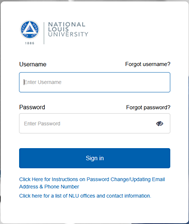
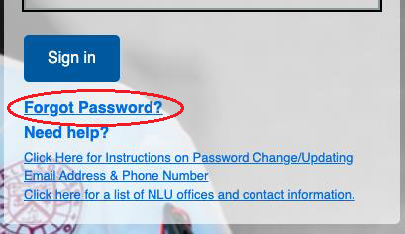
Navigate to the NLU portal at my.nl.edu. Click "Forgot password?" above the password input.
-
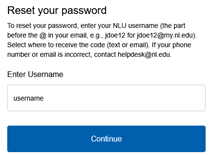
On the reset your password page, enter your username in the Enter Username input and click the Continue button.
-
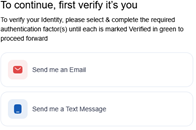
Select either email or text message as your preferred method to receive a verification code.
-
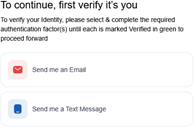
Once you receive your verification code via your preferred method, enter it on the verification page.
If you need additional assistance, please contact the Help Desk at helpdesk@nl.edu
Guide download: Password Reset Guide
Unlock Your Account
-
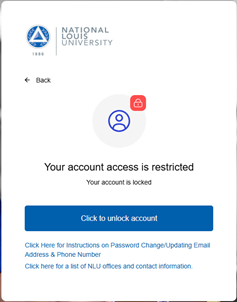
NLU Portal: Go to my.nl.edu and log in. If your account is locked, you will receive a “Your account access is restricted” error. Click on “Click to unlock account”
-
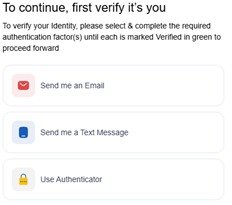
Verification Code: You can choose where you would like a verification code to be sent. Click on the preferred method.
-
Reset: Once you have chosen your preferred method, a verification code will be sent to that email. You will need to provide the code and click on “Submit.”
-
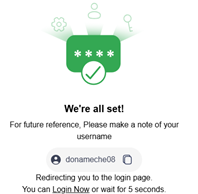
Log In: Once you type in the MFA code, your account will be unlocked and you will be redirected back to the login page. You may now log in with your unlocked account.
-
Reach out: If you encounter any issues, contact helpdesk@nl.edu; we will gladly assist.
Account Lockout
The are a few reasons your account might get locked. Your account might get locked due to a few different reasons. If you have been locked out of your account, please reach out to helpdesk@nl.edu or call (312)261-3700
-
Wrong Password: Typing the wrong password a few times can cause your account to lock. If you don't remember your password, click on forgot password and reset your password.
-
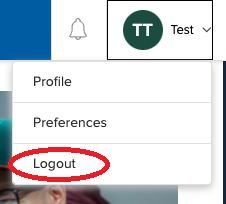
Old Password: Some devices could still have your old password saved. Ensure you log out from all your devices when changing your password and log back in with the old password.
-
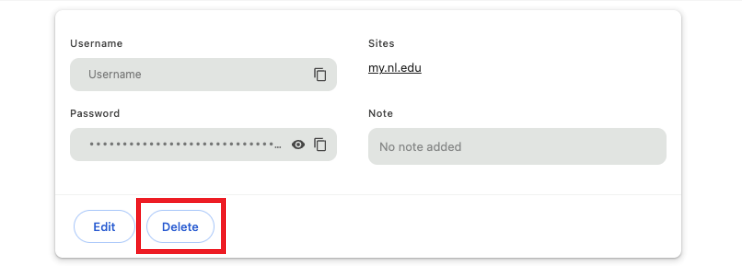
Bad Password: Your browser can carry a bad password. Clear cache and cookies. Make sure you delete any saved passwords.
- Expired Password: Your password is expired. Change your password if you have received an email about your password expiring.
Guide download: Account Lockout PDF
D2L is our educational module that provides a platform for instructors to provide learning support to our students. Key functions such as submitting assignments, posting lectures, and posting discussions are managed in D2L. Common issues students have found on D2L are missing documents, inactive submission posts, discussion post errors, etc. If you encounter an issue with the D2L Platform, please reach out to the LXD team.
You can also find the LXD page here: LXD
Software
An Office 365 License is included with your NLU student account. To download the Office apps or activate them always use your NLU email address.
How to Install Office 365
-
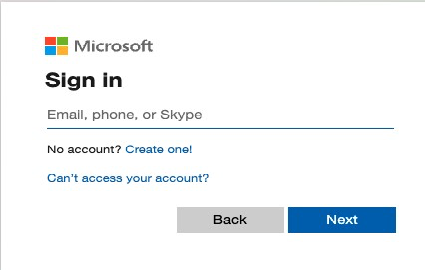
Navigate to https://www.portal.office.com
-
Enter your NLU student email address.
-
Enter your login for the portal page and follow the prompts.
-
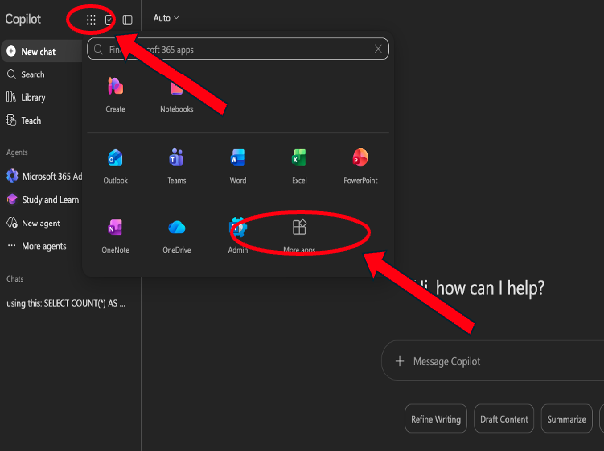
Once logged in, you will see the Copilot home page. Using the waffle menu in the top left-hand corner, navigate to more apps.
-
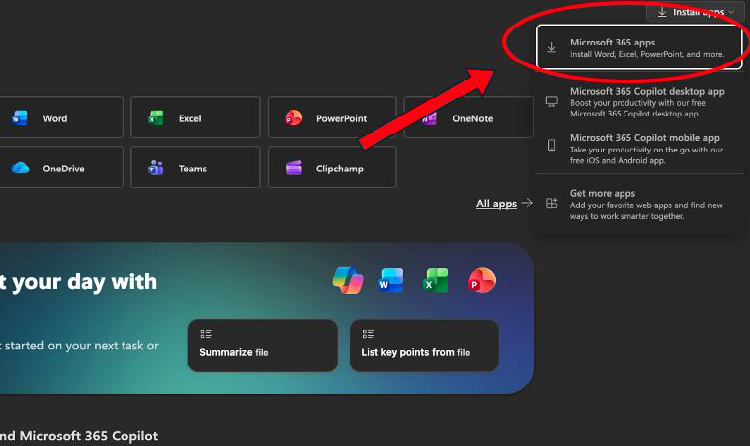
Click the Select Install Apps at the top right of your screen, labeled as Microsoft 365, making sure to not click the option labeled as Copilot.
-
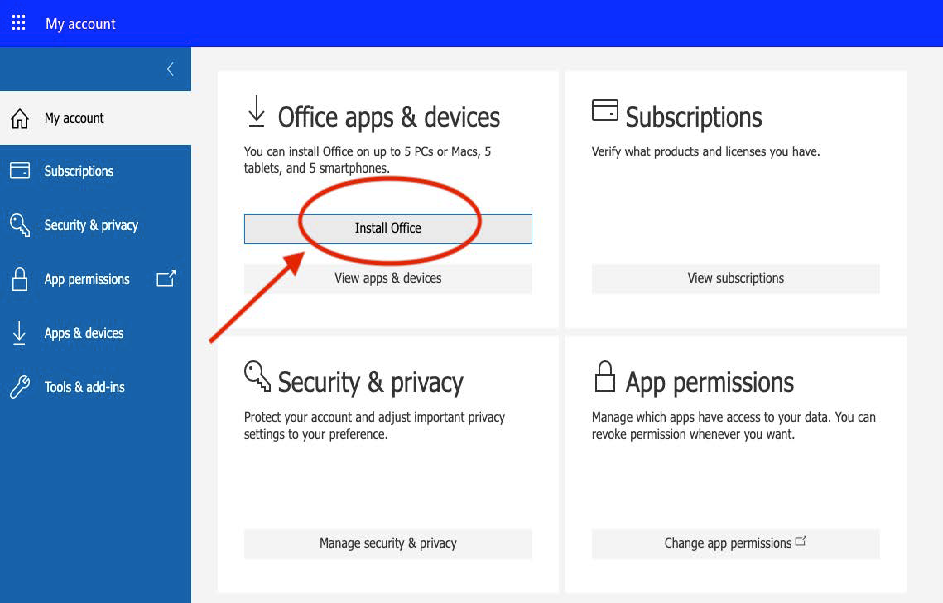
This will bring you to the office apps installer. Select "Install Office" and your computer will run the Office Installer.
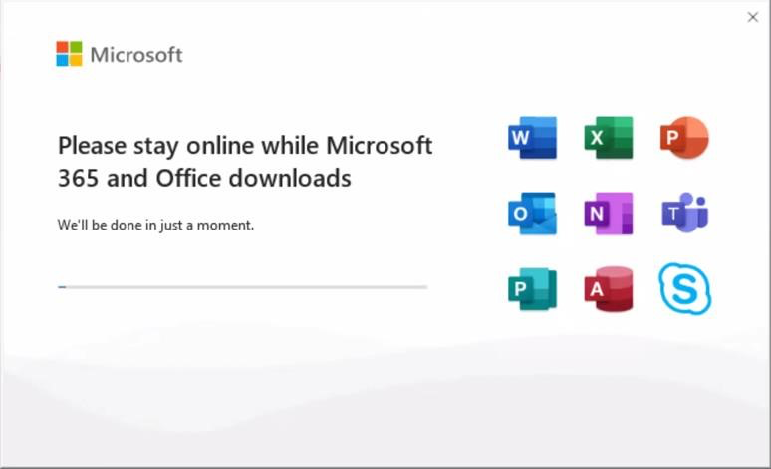
- Follow the prompts in the installer, and it will install the Office Suite on your device.
-
After some time, you will receive a message in the installer that you are all set, and you can begin using your Office apps.
Guide download: How to Install Office 365
How to Sign into Zoom
- Launch the Zoom application
-
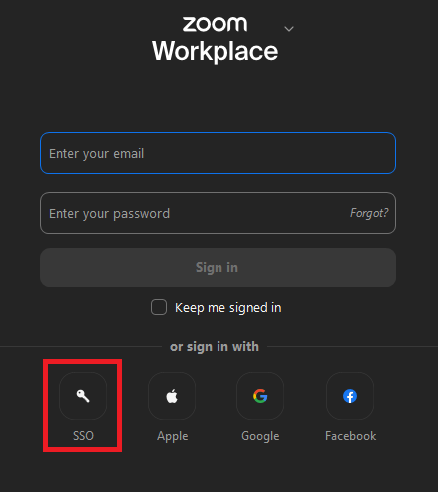
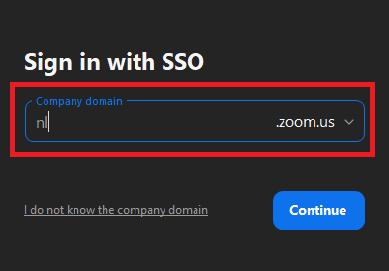
At the login window, click SSO
-
Enter "nl" for the Company Domain field
-
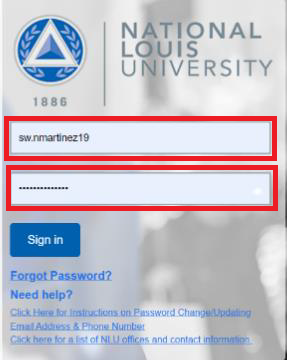
When the Portal Login pops up in a new browser window, sign in using your credentials
- When you sign in and the "Sign in with SSO" page shows, click "Launch Zoom".
- Zoom will update, and you will be successfully signed in.
Guide download: How To Sign Into Zoom PDF
You may want to add your NLU email to your mobile device. Depending on the operating system of your phone it can be added in different ways. Below are the steps to add it for iOS and Android.
Adding Outlook to iOS Devices
-
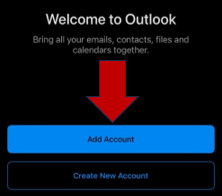
To add your NLU email address to Outlook on your iOS device, download Outlook from the App Store. Open the application and select "Add Account"
-
You will be prompted to input your full NLU email address. After you do so, you will be asked for the password for your account.

-
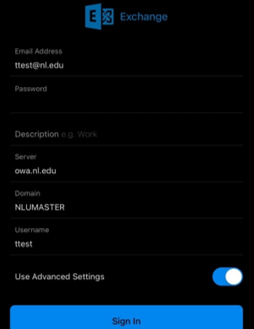
Toggle "Use Advanced Settings". You will need to provide your full NLU email address. Then add your NLU password, the server (owa.nl.edu), and the domain (NLUMASTER). Input only your username at the end and select sign in.
- After you add your account, if you have another account you would like to add, select "add another account". If not, select "maybe later".
- If you run into any issues, contact helpdesk@nl.edu
Adding Outlook to Android Devices
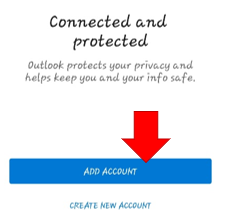
- Download the Outlook Application
-
Add an account
-
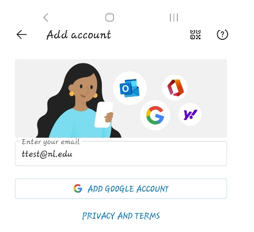
Enter your NLU email
-
For the Username and Password fields, enter your NLU issued credentials.

- Enter "owa.nl.edu" in the Server field
- Enter "NLUMASTER" in the Domain field.
- You may keep Description blank, or give it a descriptive name if you wish.
- Click the top right checkmark to add the account
How to Reload Printing Funds
-
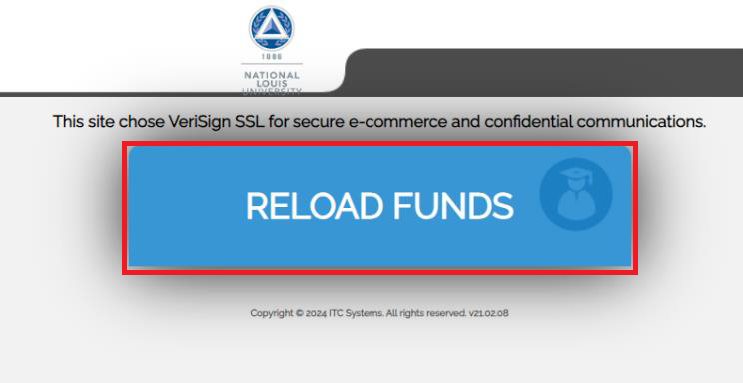
Use the computers in the Computer Lab or navigate to webpurchase.nl.edu on any computer, and click "Reload Funds"
-
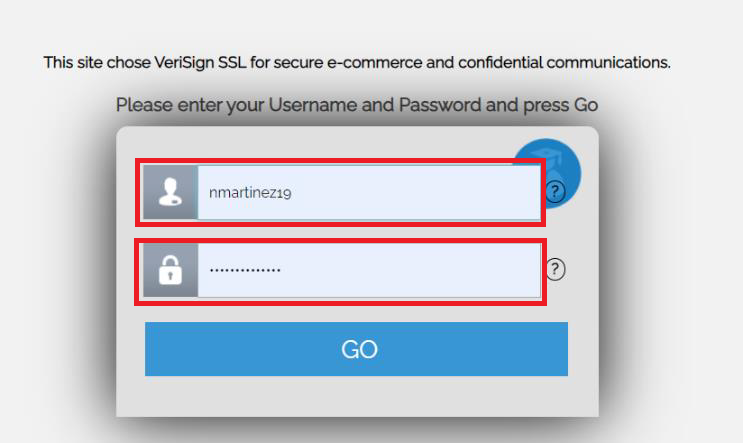
Enter your NLU issued Username and Password as you would when logging into the portal.
-
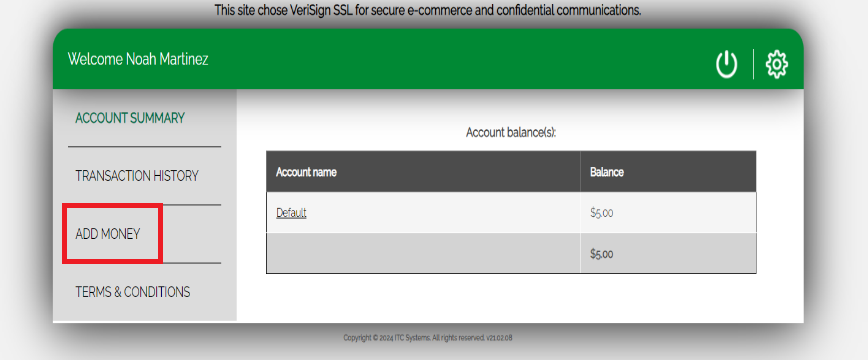
Click "Add Money"
-
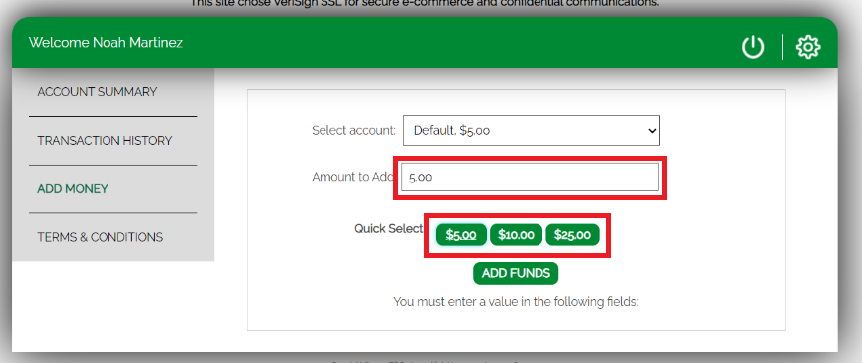
The account used should be "Default". Enter an amount to add, or click any quick selection option to add money. Then click "add funds".
- Email address should default to your school email. Otherwise, use any email address to receive a confirmation email/receipt. Click "next".
- Enter your payment information. Once finished, click "Pay with your credit card".
- If completed successfully, will will see a transaction details page.
Guide download: Reload Print Funds PDF
If you recently added funds to your printing account, but your balance does not reflect your payment, you can contact the Helpdesk (helpdesk@nl.edu) to resolve the issue. Before reaching out, please have these items ready:
- Copy of receipt or payment screenshot
- NLU ID Number
How to Install Citrix Workspace
- Go to https://www.citrix.com/downloads/workspace-app/ and download the latest Workspace app release for your operating system.
- Run the installer to install the client.
- Launch Citrix Workspace. You will be prompted to enter your server address or work email when it launches.
-
Enter "citrixapps.nl.edu" and click the Continue button.

-
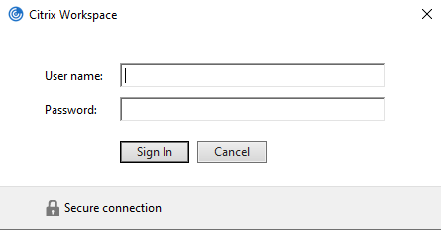
Enter your NLU username and password and click the Sign In button.
-
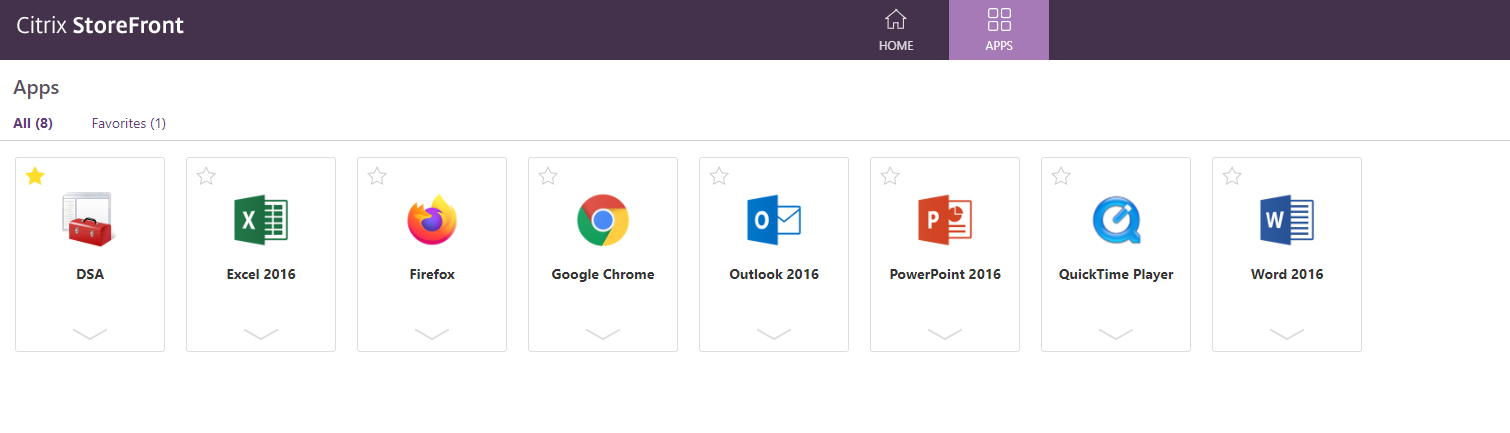
Wait for Citrix to log you in, after which you should see your available Citrix applications.
Guide download: Installing Citrix Workspace PDF
Web Purchase Quick Start Guide
What Is Web Purchase?
Web Purchase is a web application that allows you to add funds to your NLU accounts. Use the funds in your account at the Skylight Café, Daily Grind, and more!
Log In
- Navigate your browser to webpurchase.nl.edu
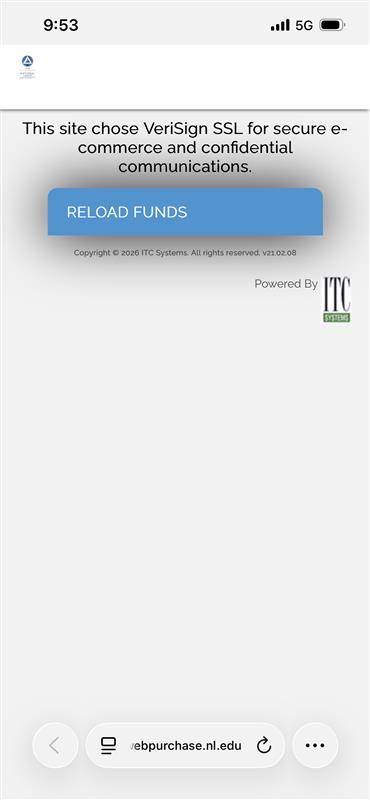
- Click the Reload Funds button
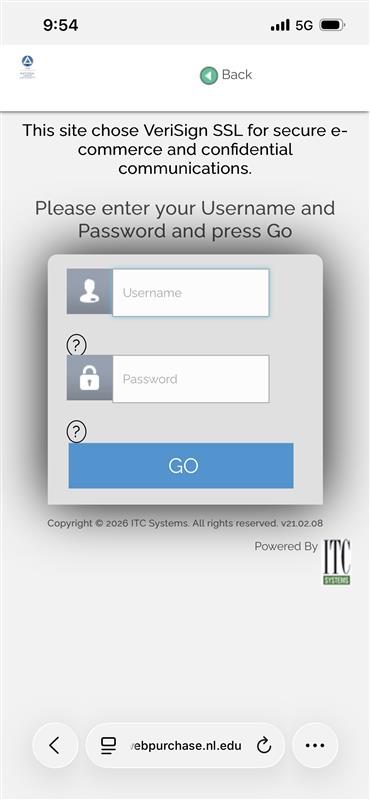
- Enter your NLU username and password and click GO
Review Account Balances
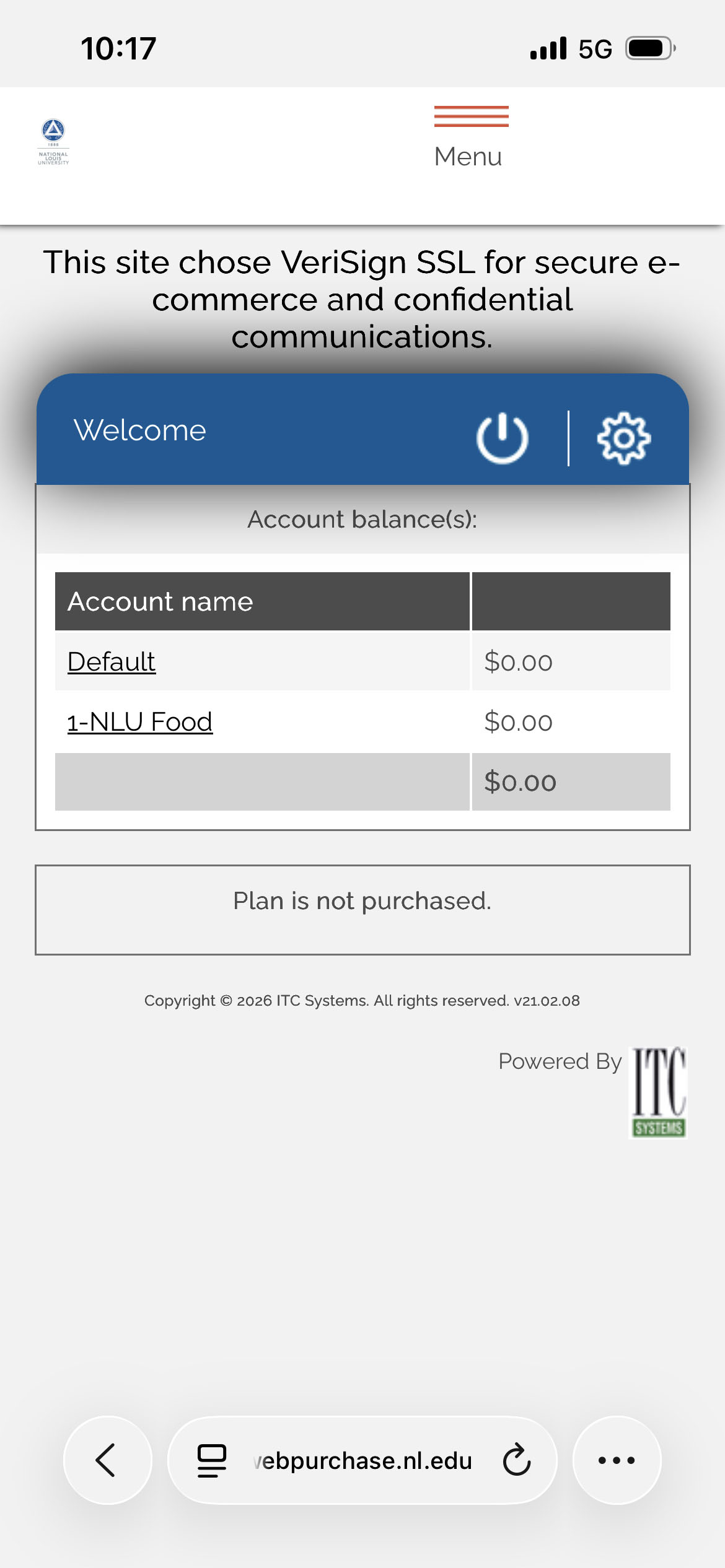
- The application opens on the Account Summary page
- Use this page to view your account balances
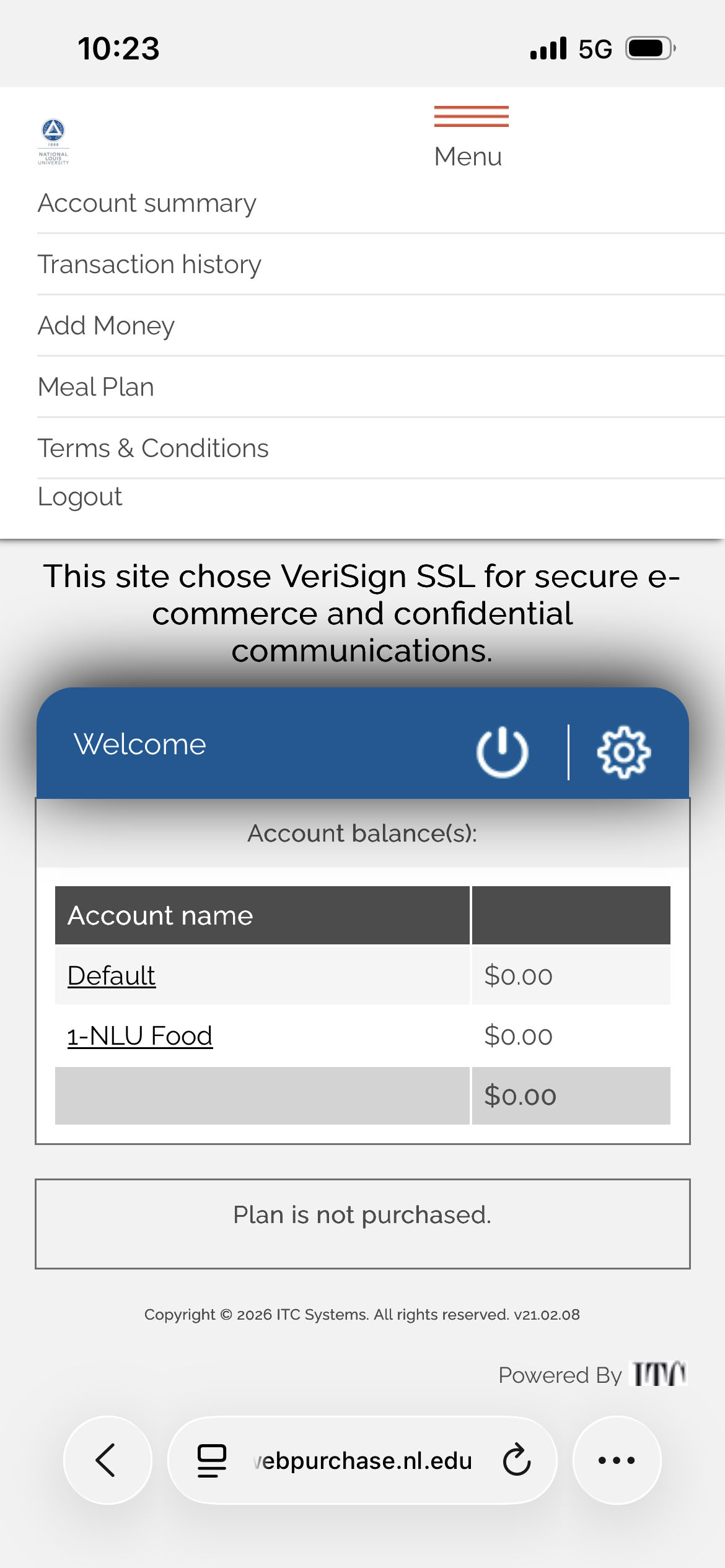
- Return to this page later by selecting Account summary from the dropdown menu at the top of the application
Add Money to Your Account
- Select Add Money from the dropdown menu at the top of the application
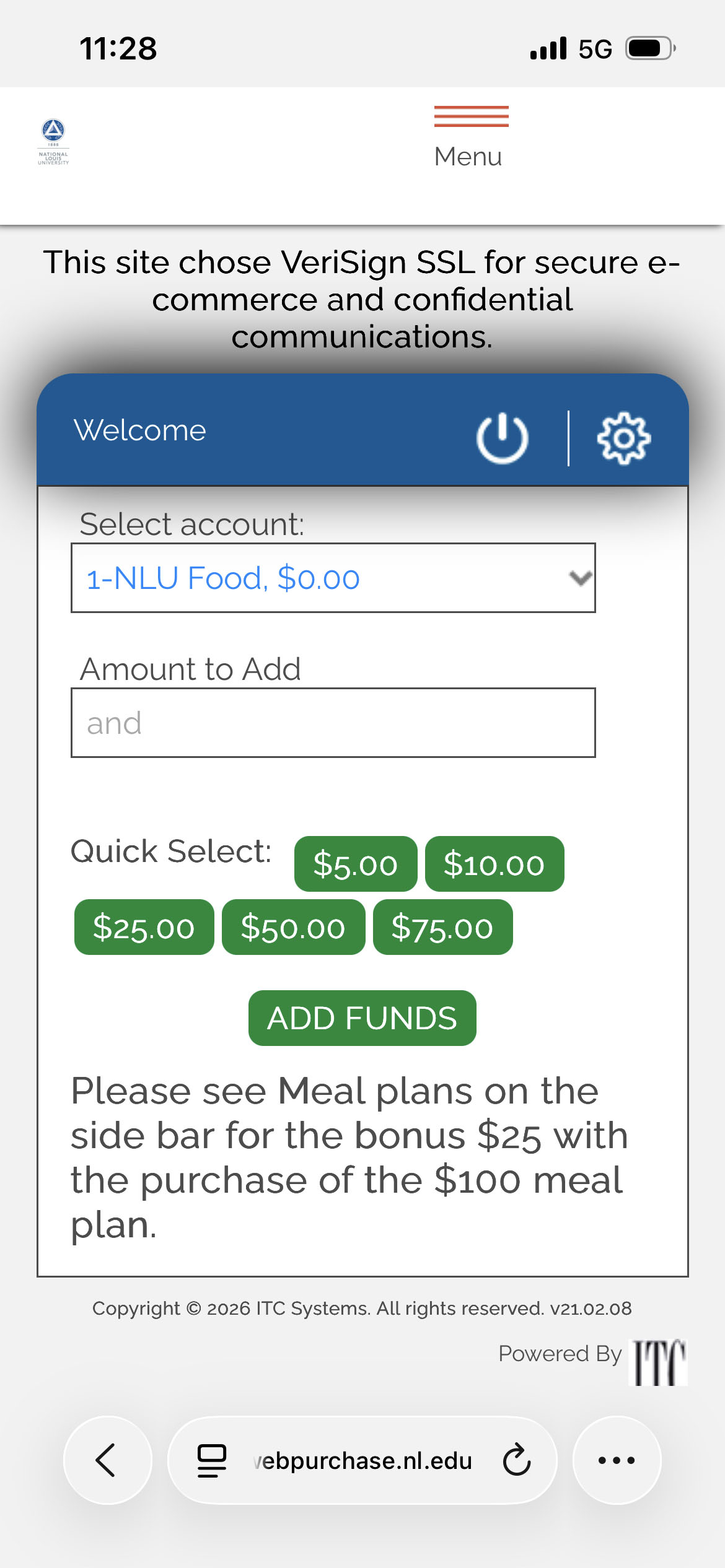
- Select 1-NLU Food from the Select account dropdown to add funds to your food account
- Enter the amount you wish to add in the Amount to Add field or select a dollar amount from the Quick select options
- Click ADD FUNDS
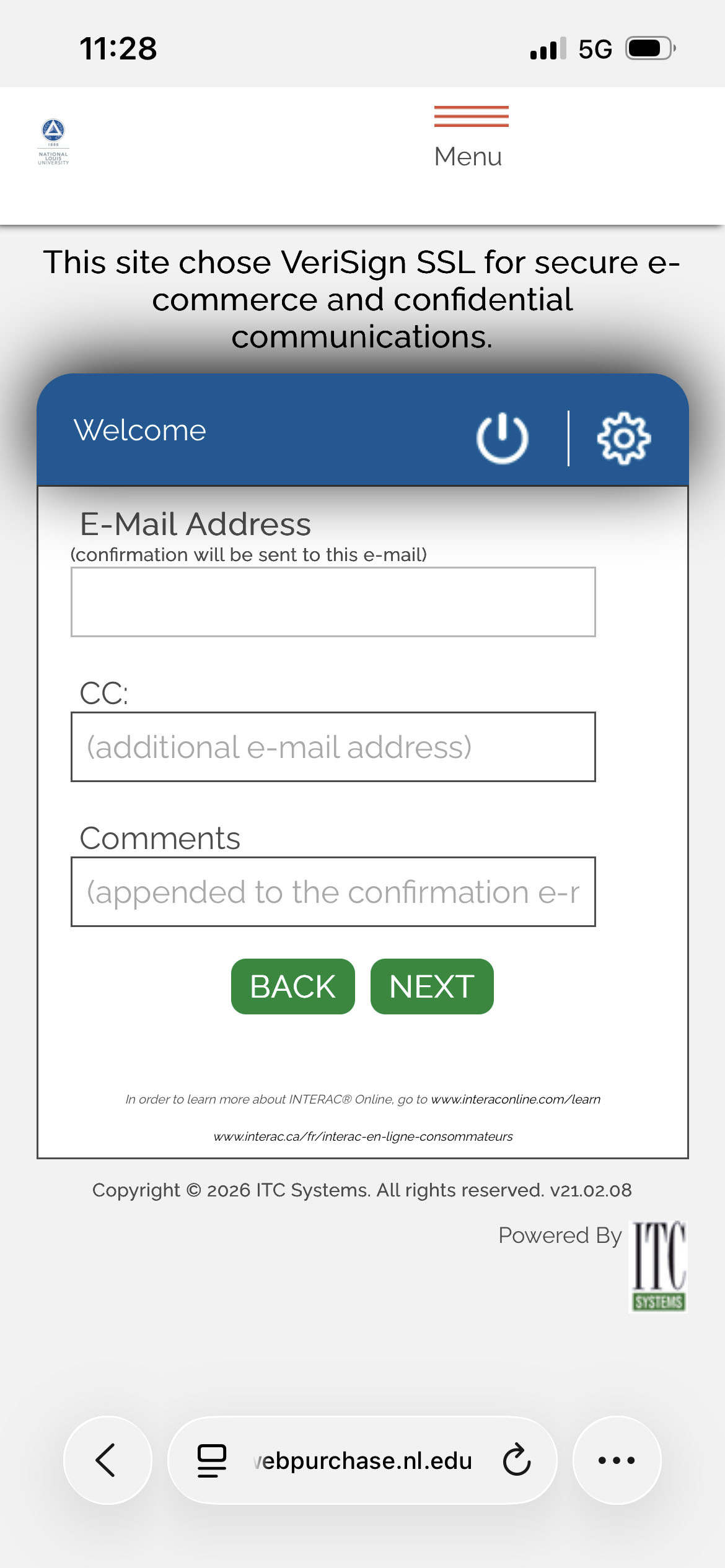
- Verify your email address. Then click NEXT
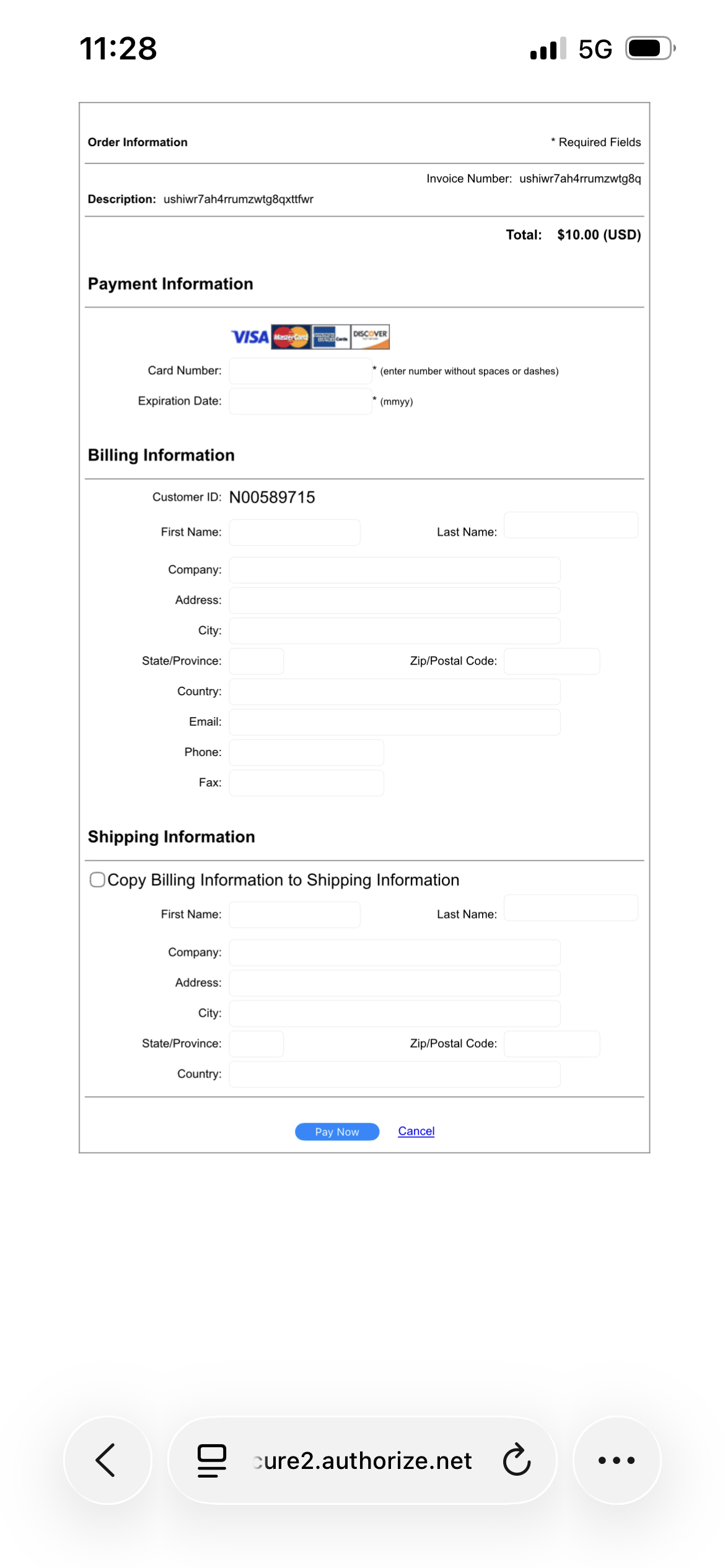
- Enter your credit card information on the secure form and click Pay Now
- Click the button on the next page to complete the transaction
- Your funds are now available!
Save Money with a Meal Plan
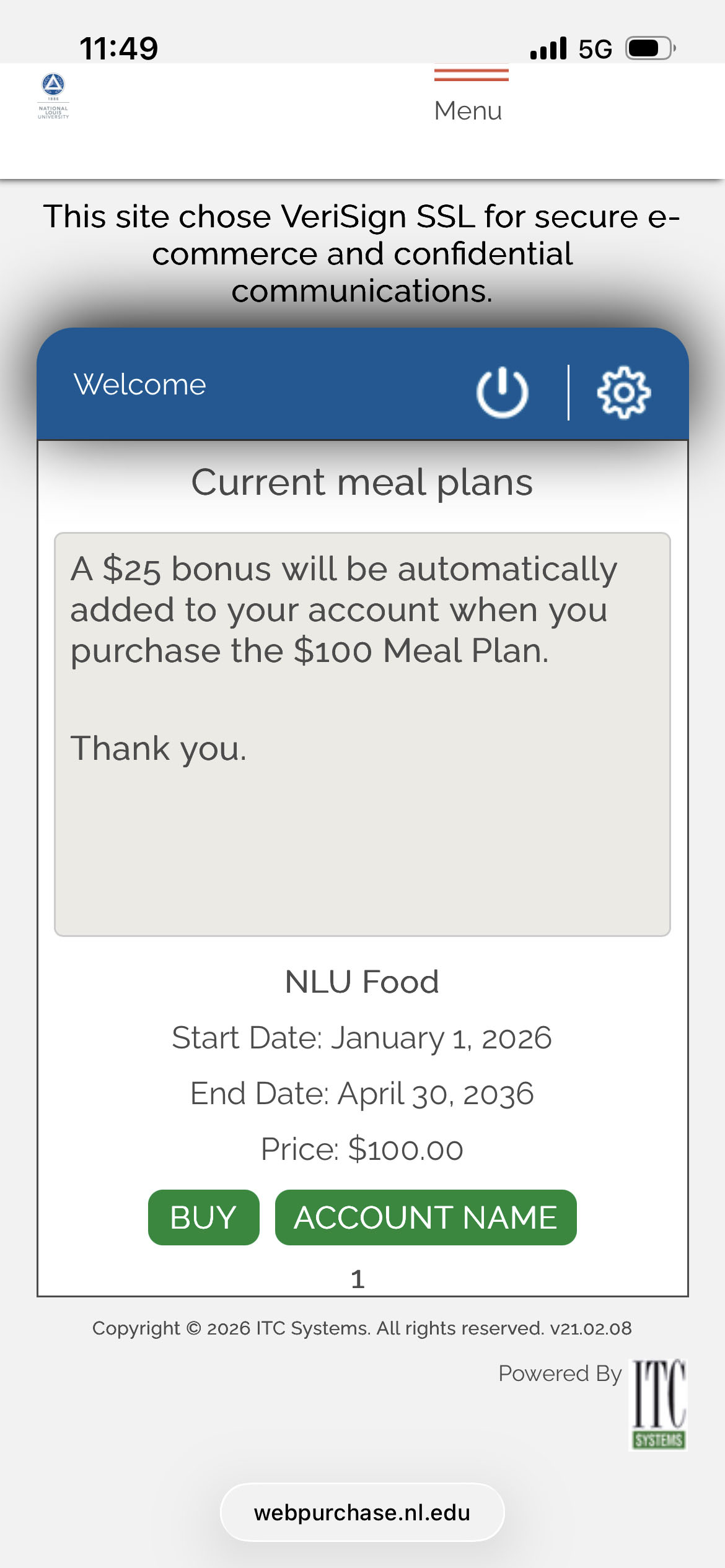
Get $25 free when you purchase a $100 meal plan!
- Select Meal Plan from the dropdown menu at the top of the application
- Click BUY
- Verify your email address and click NEXT
- Enter your credit card information on the secure form and click Pay Now
- Click the button on the next page to complete the transaction
- Your funds are now available!
AVRO Mobile Quick Start Guide Online Photo Submission Quick Start Guide
