Saving Feedback
Don't lose your feedback in rubrics and grades!
'Tis the season to be grading — and giving feedback. Seasoned instructors know how important their individualized, narrative feedback is to students. Brightspace by D2L provides many places and ways to give feedback. Unfortunately, a couple of such places, late this fall, have developed issues with saving the feedback you give. Let's make sure you, and your students, don't lose any of your hard work because of it!
Criterion-Level Feedback in Pop-Out Rubrics
In the New Evaluation Experience for Assignments and Discussions, rubrics can be scored using a compressed in-line interface, or the rubrics can be popped out to provide a full, traditional view. It is that pop-out view that invites you to unknowingly discard the criterion-level feedback you have just typed into it!
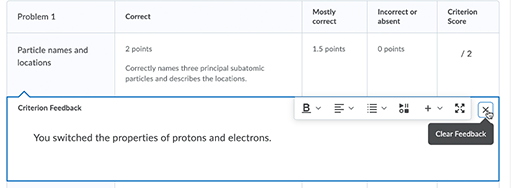
What looks like a "close box" in the feedback field is in fact a clear-out button! So don't touch it if you want to save your feedback.
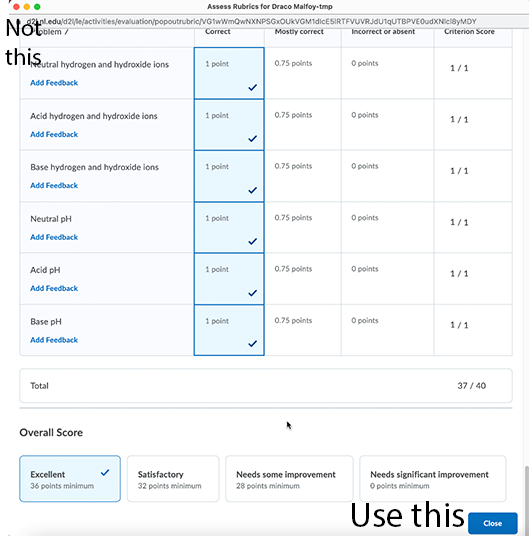
Additionally, you must close the rubric with the blue "Close" button in the bottom right. Using the rubric close button (lower right) rather than the Browser's built-in close button (usually found in the upper left of the window itself) is imperative if you want to be sure your feedback saves with the rubric.
Neither of the rubric issues is really a bug, but more of a design flaw. We hope the design will be improved before long. Meanwhile, don't let the flaws mislead you into losing your feedback!
Rubric Feedback Video
Individual Feedback in Grades
In most cases, narrative feedback in Grades comes from the Overall Feedback given when assessing student work in the Assignment or Discussion tool. There is a specific situation, however, when any grade feedback given must come from directly from Grades: the final grade.
There are two ways to access the feedback field for a grade item. The bug is only found in the first one!
- Click the link on the individual student's name to see all that student's grades, as well as the feedback field. This is the path where your feedback will not save, due to a bug that is scheduled to be fixed in late December. But if you really like this interface for a final grade comment, we have an easy work-around involving a text grade item adjacent to the final grade. See text grade video.
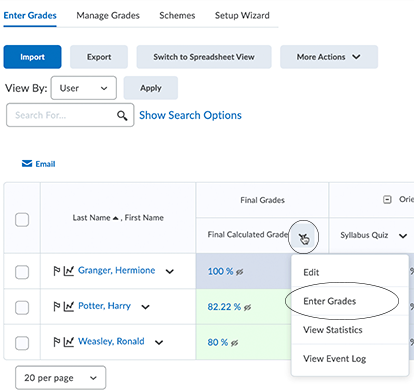
- Or, use the dropdown menu on your final grade grade column and choose "Enter Grades", as in the image below. Then use the feedback field for each student; saving WORKS here! See Enter Grade Feedback video.